
-429a29e90b37.webp) Counter Strike 2
Counter Strike 2Best CS2 Settings Guide: FPS, Graphics & Performance
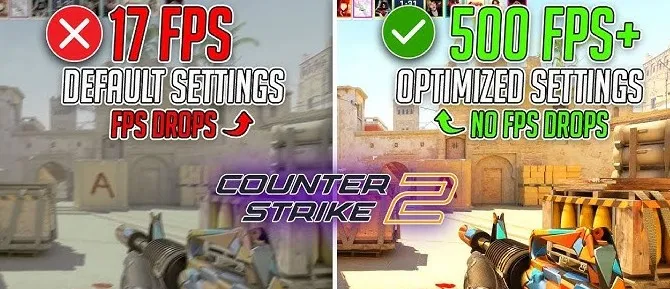
Counter Strike 2 is a game where every frame matters. A smooth, responsive experience can make the difference between winning a duel and getting eliminated before you even react. While expensive hardware certainly helps, properly configuring your settings can dramatically improve both performance and consistency without spending money on upgrades.
Many new players leave every option at its default value, assuming the game is already optimized. In reality, CS2 offers dozens of settings that affect frame rate, input latency, visibility, and overall responsiveness. Choosing the right combination can reduce distractions, improve enemy visibility, and help your game feel much more responsive.
It's important to understand that there isn't one perfect configuration for every computer. High end systems can take advantage of higher visual quality while maintaining excellent performance, whereas mid range or older PCs often benefit from lowering certain settings to achieve a stable frame rate. The goal isn't simply maximizing FPS it's creating a smooth, consistent experience that allows you to focus entirely on your gameplay.
In this guide, we'll explain the most important CS2 settings, including graphics, display, audio, mouse, and launch options, so you can build the best setup for competitive play.
Why Your Settings Matter
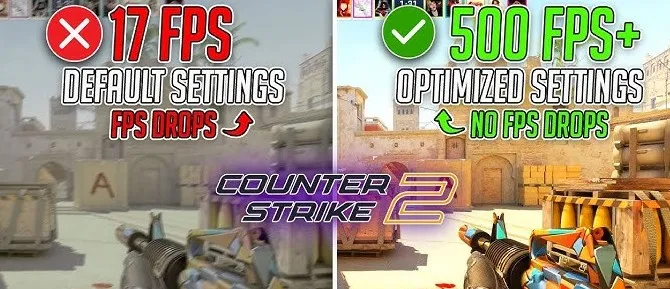
Good settings don't improve your mechanical skill overnight, but they remove unnecessary obstacles that can affect your performance.
Optimized settings can help you:
Increase FPS.
Reduce input delay.
Improve visibility.
Minimize distractions.
Make gameplay feel smoother.
Create more consistent aim.
Professional players spend time fine tuning their settings because consistency matters in every round.
Display Settings
Your display settings determine how the game is rendered before graphics options even come into play.
Display Mode
For competitive play, Fullscreen is generally the best choice.
Benefits include:
Lower input latency.
Better performance.
Faster Alt Tab response on many systems.
More stable frame rates.
Refresh Rate
Always use the highest refresh rate your monitor supports.
For example:
60 Hz
120 Hz
144 Hz
165 Hz
240 Hz
360 Hz
Higher refresh rates provide smoother animations and make enemy movement easier to track.
Resolution
Native resolution offers the sharpest image quality.
However, many experienced players prefer stretched or lower resolutions because they:
Increase FPS.
Make player models appear wider.
Reduce GPU load.
Ultimately, resolution is personal preference.
Best Graphics Settings
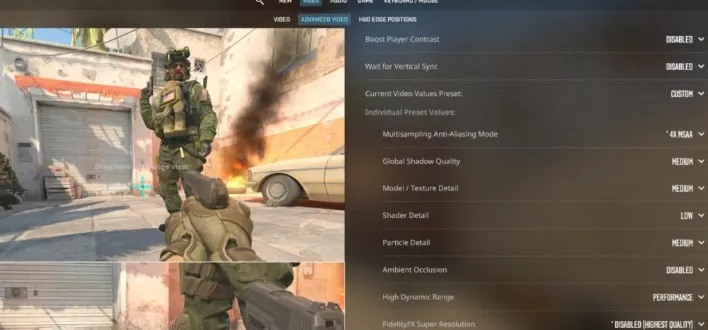
Visual quality looks impressive, but competitive players usually prioritize performance.
Boost Player Contrast
Keep this Enabled.
It helps enemies stand out against the environment, making them easier to spot.
Vertical Sync (V Sync)
Disable V Sync.
Although it can reduce screen tearing, it often increases input latency, which is undesirable in competitive shooters.
NVIDIA Reflex
If your graphics card supports it, enable NVIDIA Reflex or NVIDIA Reflex + Boost.
This technology helps reduce system latency and improves responsiveness.
Anti Aliasing
Moderate anti aliasing often provides a good balance between image quality and performance.
If you're chasing maximum FPS, lowering this setting can provide additional frames.
Shadow Quality
Lower shadow settings usually improve performance.
Many competitive players reduce shadow quality while keeping enough detail to notice useful visual cues.
Texture Quality
Texture quality has relatively little impact on gameplay.
Choose a setting that your hardware can comfortably handle without sacrificing performance.
Ambient Occlusion
Lower or disable this option if your goal is maximum FPS.
While it improves visual realism, it offers little competitive advantage.
Particle Effects
Reducing particle quality can improve visibility during heavy smoke, grenade, or explosion effects.
Best Audio Settings
Sound is incredibly important in Counter Strike 2.
Footsteps often provide more information than visual contact.
Prioritize hearing:
Enemy footsteps.
Reloads.
Grenade throws.
Scope sounds.
Bomb interactions.
Avoid excessively loud music or unnecessary background effects that mask important audio cues.
Mouse Settings
Your mouse settings should remain consistent.
Important recommendations include:
Disable mouse acceleration.
Use a comfortable sensitivity.
Keep DPI consistent.
Avoid constantly changing settings.
Building muscle memory is far more valuable than searching for perfect numbers.
Launch Options
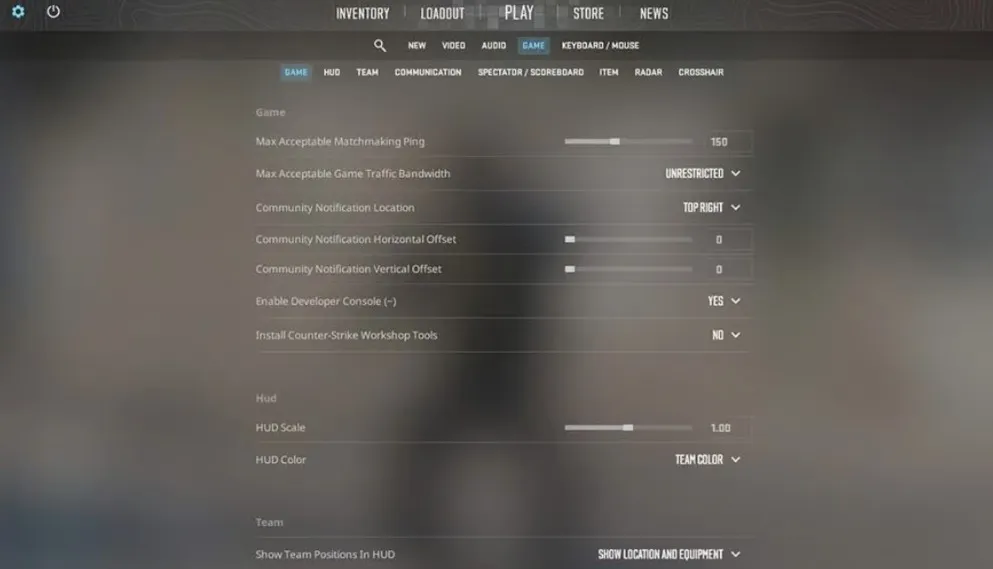
Launch options can help streamline your CS2 experience, although fewer are required in CS2 than in previous Counter Strike titles.
Common launch options include:
Skipping the intro video.
Automatically opening the developer console.
Setting your preferred refresh rate (if needed).
Avoid using outdated launch options that no longer provide benefits, as they can cause confusion or unexpected behavior.
NVIDIA Control Panel Recommendations
If you have an NVIDIA graphics card, optimizing the NVIDIA Control Panel can improve responsiveness and reduce input latency.
Recommended settings include:
Low Latency Mode: On or Ultra (if supported)
Power Management Mode: Prefer Maximum Performance
Texture Filtering – Quality: High Performance
Vertical Sync: Off
Threaded Optimization: Auto
Preferred Refresh Rate: Highest Available
These settings prioritize competitive performance over visual quality.
AMD Graphics Recommendations
AMD users can achieve similar results through AMD Software: Adrenalin Edition.
Recommended options include:
Enable Anti Lag if supported.
Disable Radeon Chill.
Disable Enhanced Sync if it introduces input delay.
Set Texture Filtering Quality to Performance.
Use the highest available refresh rate.
As with NVIDIA cards, the goal is smooth and consistent gameplay rather than maximum graphical fidelity.
Best Settings for Low End PCs
If you're playing on older hardware, prioritize frame rate over visual effects.
Recommended approach:
Lower shadow quality.
Lower particle effects.
Lower ambient occlusion.
Reduce anti aliasing.
Use fullscreen mode.
Close unnecessary background applications.
Keep your graphics drivers updated.
A stable 120 FPS is generally more beneficial than unstable performance that constantly fluctuates.
Best Settings for High End PCs
Powerful hardware allows you to increase visual quality while maintaining excellent performance.
However, many competitive players still avoid unnecessary visual effects because cleaner graphics make enemies easier to spot.
A balanced setup often provides:
High frame rate.
Low input latency.
Clear player visibility.
Smooth gameplay.
Even on premium hardware, consistency matters more than ultra graphics.
Common Settings Mistakes
Many players unintentionally reduce their performance by making avoidable configuration mistakes.
Using V Sync
Although V Sync reduces screen tearing, it often increases input latency.
For competitive play, it's usually best to keep it disabled.
Constantly Changing Settings
Changing graphics or sensitivity after every bad match prevents you from adapting.
Give yourself time to get used to one configuration before making adjustments.
Prioritizing Visual Quality Over Visibility
Ultra graphics may look impressive but can introduce unnecessary visual clutter.
Competitive players generally value clarity over realism.
Ignoring Monitor Refresh Rate
Many players buy a 144 Hz or 240 Hz monitor but accidentally leave Windows set to 60 Hz.
Always verify your monitor is running at its maximum refresh rate.
Copying Professional Settings Exactly
Professional players use different hardware, monitors, mice, and personal preferences.
Instead of copying every setting, understand why those settings work and adjust them to fit your own system.
Should You Copy Professional Players?
Professional configurations are excellent references but shouldn't be copied blindly.
Every player's setup depends on factors like:
Hardware
Monitor size
Resolution
Mousepad space
Personal comfort
Experiment with recommended settings and keep the ones that improve your experience.
Conclusion
Optimizing your CS2 settings is one of the easiest ways to improve your overall gaming experience without upgrading your hardware. The ideal configuration balances high frame rates, low input latency, and clear visuals, allowing you to react quickly and stay focused during every round. Whether you're adjusting graphics, audio, mouse settings, or your graphics card control panel, small improvements can add up to a noticeably smoother experience.
Remember that there is no single "best" configuration for every player. Your hardware, monitor, and personal preferences all play a role in determining what feels right. Start with the recommendations in this guide, test them over several matches, and avoid constantly changing your settings. Consistency, combined with regular practice, will have a much greater impact on your long term performance than chasing perfect numbers alone.