
-429a29e90b37.webp) Counter Strike 2
Counter Strike 2Best CS2 Crosshair Settings: Complete Guide & Pro Crosshair Codes
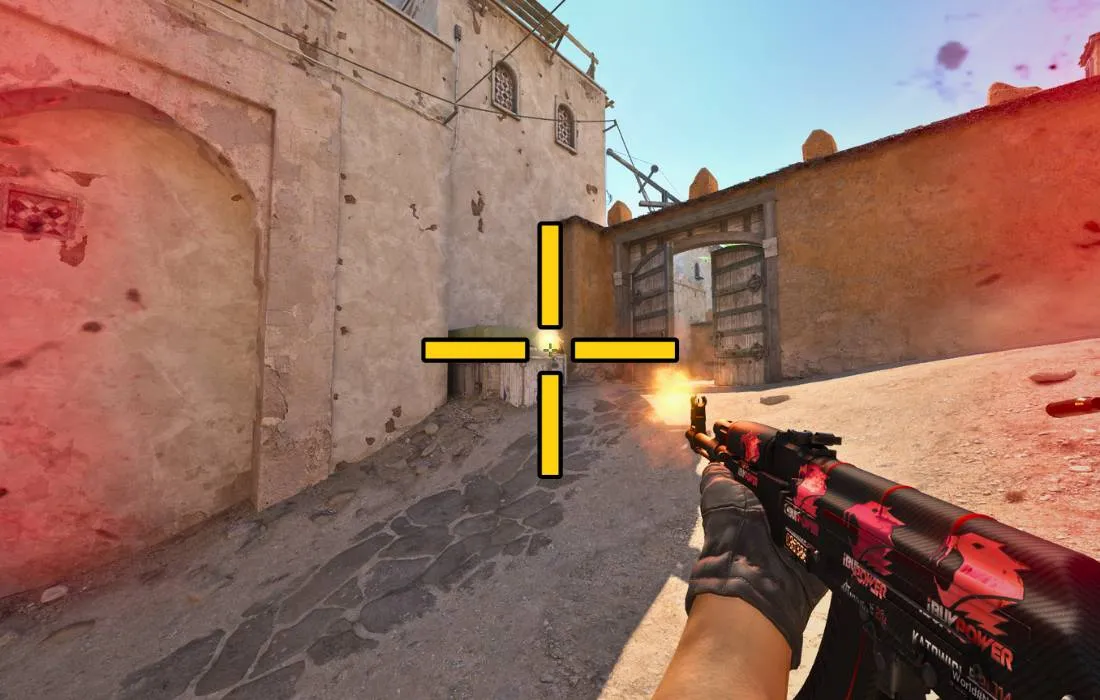
Your crosshair is one of the most important settings in Counter Strike 2. While changing your crosshair won't instantly improve your aim, using one that feels comfortable and easy to track can make landing shots far more consistent. Every professional player spends time fine tuning their crosshair because even small adjustments can improve visibility, precision, and confidence during intense firefights.
Unlike graphics settings or hardware upgrades, your crosshair directly affects how you line up every shot. A design that's too large may block an opponent's head at long range, while one that's too small can become difficult to see during fast movement or bright environments. Finding the right balance is key.
CS2 also gives players much more flexibility than older Counter Strike titles. You can customize nearly every aspect of your crosshair, including color, thickness, outline, gap, center dot, and dynamic behavior. Whether you prefer a clean static crosshair or one that provides movement feedback, the game offers plenty of options to match your playstyle.
In this guide, you'll learn how crosshair settings work, which options matter most, how professional players configure their crosshairs, and how to choose the best setup for your own gameplay.
Why Your Crosshair Matters
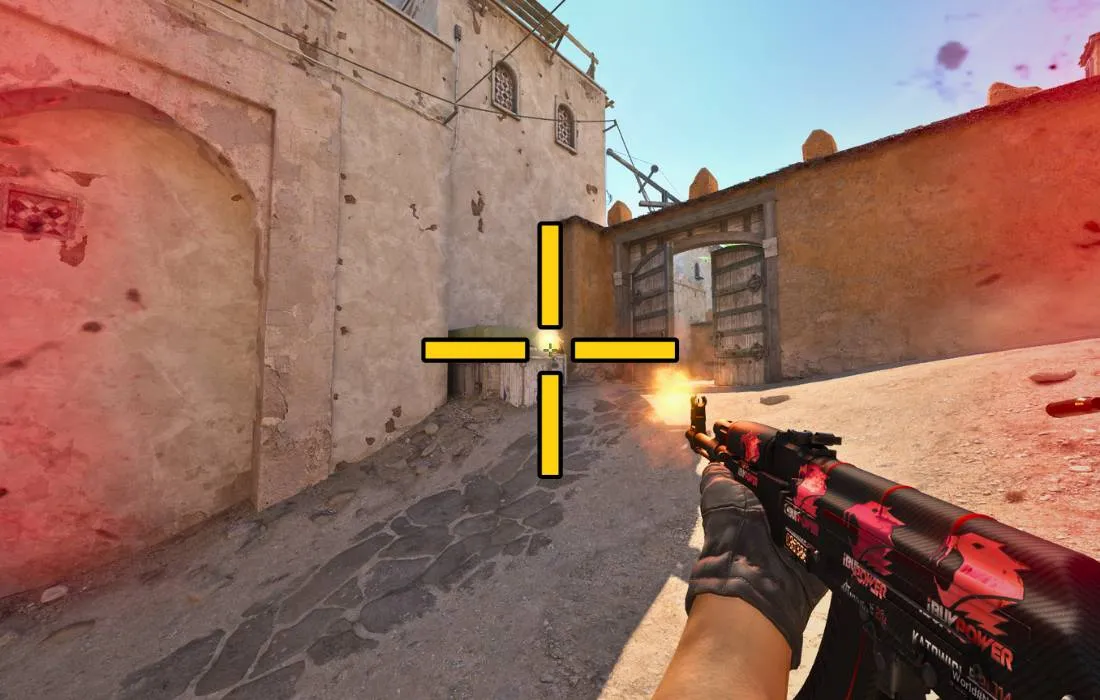
Your crosshair is your constant aiming reference.
Every duel, spray transfer, flick shot, and headshot starts with proper crosshair placement.
A well designed crosshair should help you:
Keep track of the center of your screen.
Aim quickly without distractions.
Maintain visibility during fights.
Build consistent muscle memory.
Although no crosshair guarantees better aim, using one that's easy to see allows you to focus more on positioning and decision making.
Static vs Dynamic Crosshairs
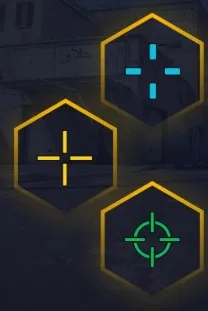
One of the first choices you'll make is whether to use a static or dynamic crosshair.
Static Crosshair
A static crosshair stays the same size regardless of movement or shooting.
Advantages include:
Consistent appearance.
Easier precision.
Preferred by most professional players.
Less visual distraction.
For these reasons, static crosshairs are the most common choice in Competitive play.
Dynamic Crosshair
A dynamic crosshair expands while moving or firing.
Advantages include:
Provides movement feedback.
Helps beginners understand weapon accuracy.
Makes it easier to learn when shots become inaccurate.
However, many experienced players eventually switch to static crosshairs for greater consistency.
Understanding Crosshair Settings
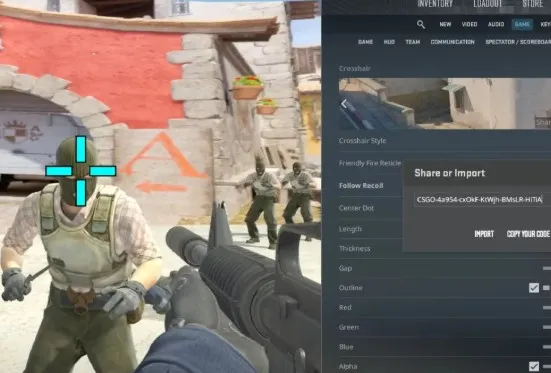
CS2 allows extensive crosshair customization.
Each setting changes how your crosshair looks and behaves.
Crosshair Color
Your crosshair should always stand out against the environment.
Popular colors include:
Green
Cyan
Bright Blue
Yellow
Magenta
Avoid colors that blend into common map textures.
For example, green can become difficult to see on grassy areas, while white may disappear against bright walls.
Crosshair Size
Size determines how large your crosshair appears.
Generally:
Smaller crosshairs improve long range precision.
Larger crosshairs are easier to see.
Medium sized crosshairs provide the best balance for most players.
Choose a size that allows you to clearly see enemy heads without covering them.
Thickness
Thickness affects the width of each crosshair line.
A thinner crosshair often feels more precise, while thicker lines improve visibility on high resolution monitors.
Most players prefer moderate thickness rather than extremely thin or oversized lines.
Gap
Gap controls the empty space in the center of your crosshair.
Smaller gaps:
Improve precision.
Help with headshots.
Feel cleaner.
Larger gaps:
Provide better target visibility.
Make tracking easier for some players.
Finding the right gap is mostly personal preference.
Outline
Outlines add a thin border around the crosshair.
Benefits include:
Better visibility.
Improved contrast.
Easier tracking on bright maps.
Many professional players enable subtle outlines rather than thick borders.
Center Dot
The center dot places a small point in the middle of the crosshair.
Some players enjoy the additional aiming reference.
Others disable it because they feel it blocks distant targets.
Both approaches are perfectly viable.
Best Crosshair Settings for Beginners
If you're just starting CS2, simplicity is usually best.
A beginner friendly crosshair should be:
Static
Medium size
Bright color
Small gap
Thin outline
No unnecessary animations
This provides excellent visibility while helping you develop consistent crosshair placement.
Should You Copy Professional Players?
Many new players search for professional crosshair codes hoping they'll immediately improve.
Professional crosshairs can provide useful inspiration, but remember that they're based on years of personal preference, monitor size, resolution, and experience.
Instead of copying a setup permanently, try several popular crosshairs and adjust them until one feels comfortable.
The best crosshair is the one that helps you aim consistently.
Best CS2 Pro Crosshair Codes
Many professional Counter Strike 2 players use relatively simple crosshairs. While there's no single "perfect" setup, trying different professional configurations can help you discover what feels most comfortable.
Keep in mind that pro players choose their crosshairs based on years of experience, personal preference, monitor size, and resolution. Use these settings as a starting point rather than a rule.
Popular Pro Crosshair Characteristics
Most professional players use:
Static crosshair
Small or medium size
Bright color
Thin lines
Small gap
No center dot
Minimal visual distractions
These settings maximize visibility while keeping the player's focus on enemy heads rather than the crosshair itself.
How to Import Crosshair Codes
Counter Strike 2 makes importing crosshairs incredibly easy.
To import a crosshair:
Open Settings.
Select the Game tab.
Open Crosshair settings.
Click Share or Import.
Paste a crosshair code.
Apply the settings.
You can instantly switch between different crosshairs without manually changing every option.
This makes experimenting with different styles much faster.
Creating Your Own Crosshair
Instead of copying someone else's settings, consider creating a crosshair that matches your own preferences.
Ask yourself:
Is my crosshair easy to see?
Does it cover enemy heads?
Can I track it during sprays?
Is it distracting?
Does it feel comfortable during long sessions?
Small adjustments usually work better than completely changing your setup.
Using Console Commands
Advanced players often customize their crosshair using the developer console.
Some commonly used commands include:
cl_crosshairsize
cl_crosshairgap
cl_crosshairthickness
cl_crosshaircolor
cl_crosshair_drawoutline
cl_crosshairdot
These commands allow extremely precise customization beyond the in game sliders.
However, for most players, the built in settings menu provides everything needed.
Common Crosshair Mistakes
A poorly configured crosshair can make aiming harder than it needs to be.
Here are some of the most common mistakes players make.
Making the Crosshair Too Large
Large crosshairs often cover enemy heads at long distances.
This reduces precision and makes accurate taps more difficult.
Using Colors That Blend Into Maps
A green crosshair may disappear against vegetation.
A white crosshair may blend into bright walls.
Always choose a color with strong contrast.
Changing Crosshairs Every Match
Many players switch crosshairs after one bad game.
This prevents muscle memory from developing.
Choose one setup and stick with it for a while before making small adjustments.
Adding Too Many Features
Center dots, thick outlines, oversized gaps, and bright colors together can create unnecessary visual clutter.
A clean crosshair is usually easier to follow.
Copying Professionals Without Testing
Just because your favorite professional player uses a particular crosshair doesn't mean it will work for you.
Monitor size, resolution, mouse sensitivity, and playstyle all influence what feels comfortable.
Tips for Better Crosshair Placement
Even the best crosshair won't improve your aim if it's positioned incorrectly.
Develop these habits:
Keep your crosshair at head level.
Aim where enemies are likely to appear.
Avoid looking at the ground while moving.
Pre aim common angles.
Minimize unnecessary mouse movement.
Good crosshair placement often wins more fights than fast flicks.
Conclusion
Your crosshair is one of the few settings you'll look at during every second of a Counter Strike 2 match, making it an important part of your overall setup. While there isn't a single "best" crosshair that works for everyone, choosing one that's clear, comfortable, and consistent can make aiming feel more natural and reduce unnecessary distractions during intense firefights.
Remember that the crosshair itself won't make you a better player overnight. Consistent practice, strong crosshair placement, good positioning, and smart decision making have a much greater impact on your performance. Use your crosshair as a tool to support those skills, avoid constantly changing your settings, and focus on building reliable habits that will improve your gameplay over time.