
 Roblox Rivals
Best Roblox Rivals Settings: FPS, Sensitivity & Graphics Guide 2026
Success in Roblox Rivals isn't determined by weapon choice alone. Even the best loadout won't perform well if your game suffers from low frame rates, inconsistent sensitivity, or settings that make it difficult to track opponents. Optimizing your settings can improve reaction time, make aiming feel more consistent, and provide a smoother overall experience.
Many players use the default settings without realizing they can make simple adjustments that significantly improve gameplay. Higher frame rates reduce input delay, better sensitivity settings allow more accurate flicks and tracking, and optimized graphics help you spot enemies more quickly during fast paced fights.
The ideal settings aren't exactly the same for every player. A competitive PC with a high refresh rate monitor can comfortably use different options than a laptop or mobile device. That's why it's important to understand what each setting does instead of blindly copying someone else's configuration.
This guide covers the best Roblox Rivals settings for performance, graphics, sensitivity, and aiming. Whether you're a beginner looking for smoother gameplay or an experienced player trying to maximize your competitive edge, these recommendations will help you build a setup that matches your hardware and playstyle.
Why Your Settings Matter
Small changes to your settings can have a noticeable impact on your performance.
Good settings can help you:
Increase FPS.
Reduce input delay.
Improve aiming consistency.
Track moving enemies more easily.
React faster during close range fights.
Make long gaming sessions more comfortable.
Many top players spend time optimizing their settings because consistent performance is often more valuable than flashy graphics.
Best Graphics Settings
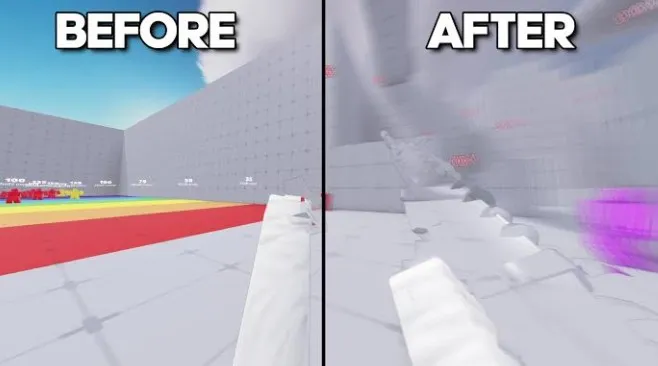
Graphics settings directly affect both visual quality and frame rate.
If your computer easily maintains a high FPS, you can increase visual quality without sacrificing responsiveness. However, if your FPS frequently drops during fights, lowering graphics usually provides a better competitive experience.
General recommendations:
Graphics Quality: Medium or Low for competitive play.
Shadows: Disable if possible to improve visibility.
Effects: Keep moderate to reduce distractions.
Render Distance: High enough to spot enemies comfortably.
Texture Quality: Medium is usually a good balance.
Competitive players generally prioritize stable FPS over maximum visual fidelity.
Optimize for Higher FPS
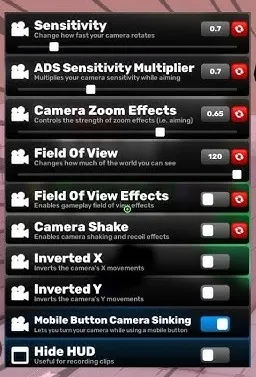
Frame rate is one of the biggest factors affecting gameplay.
Higher FPS provides:
Smoother animations.
Faster visual updates.
Lower input latency.
Easier target tracking.
To improve FPS:
Close unnecessary background programs.
Update your graphics drivers.
Reduce Roblox graphics quality if needed.
Use fullscreen mode when possible.
Restart your PC before long gaming sessions.
Avoid recording software unless necessary.
Even modest FPS improvements can make aiming feel much smoother.
Best Mouse Sensitivity
Sensitivity is one of the most personal settings in Roblox Rivals.
A sensitivity that's too high can make precise aiming difficult, while one that's too low may slow your reactions.
A good starting point is using a medium sensitivity that allows you to turn comfortably without sacrificing precision.
As you practice, make small adjustments instead of making dramatic changes every few matches.
Consistency is far more important than chasing the "perfect" sensitivity.
Controller Settings
Controller players should focus on balancing precision with responsiveness.
Recommended adjustments include:
Moderate look sensitivity.
Slightly lower ADS sensitivity for accurate aiming.
Minimal stick deadzones to reduce input delay.
Enable aim assist if available in the game settings.
Keep vibration disabled if it becomes distracting.
Finding a comfortable balance will improve both tracking and target acquisition.
Best Crosshair Settings
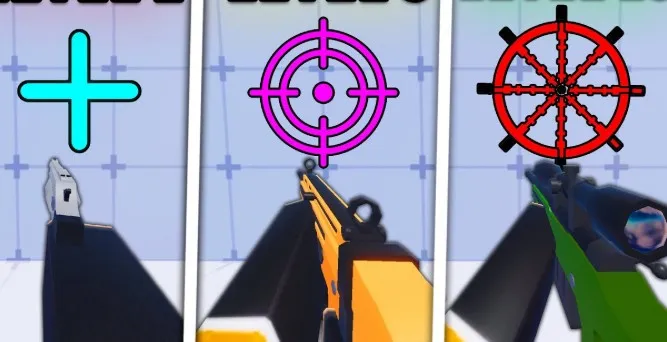
Although Roblox Rivals doesn't offer the same level of crosshair customization as some competitive shooters, your crosshair still plays an important role in aiming consistency.
A good crosshair should help you focus on your target without blocking your view.
Generally, competitive players prefer a crosshair that's:
Small enough for precise aiming.
Clearly visible on all maps.
Easy to track during fast movement.
Free from unnecessary visual clutter.
Avoid using oversized or distracting crosshairs, as they can make it harder to line up accurate shots, especially at medium and long range.
If the game introduces additional crosshair customization in future updates, we'll update this guide with the best competitive options.
Audio Settings That Give You an Advantage
Many players focus entirely on graphics and sensitivity while ignoring audio.
Good audio settings can help you detect:
Enemy footsteps.
Gunfire direction.
Reload sounds.
Nearby combat.
Player movement.
Recommended audio setup:
Master Volume: 80–100%
Sound Effects: High
Music: Low or Off
Voice Chat: Personal preference
Lowering background music makes important in game sounds easier to hear, giving you more time to react during fights.
If possible, use headphones instead of speakers for better directional audio.
Best Settings by Platform
Different devices require different priorities.
PC
If you're playing on a gaming PC, prioritize smooth performance while maintaining enough visual clarity to spot enemies.
Recommended:
High FPS
Medium graphics
Fullscreen mode
Medium mouse sensitivity
Stable internet connection
Laptop
Laptops often have more limited hardware, so reducing graphical settings usually produces a much smoother experience.
Recommended:
Low graphics
Close unnecessary programs
Plug into power while gaming
Enable performance mode if available
Maintaining stable FPS is more important than maximizing graphics quality.
Mobile
Mobile players should focus on responsiveness and battery life.
Recommendations:
Lower graphics settings.
Keep battery above 30%.
Avoid overheating.
Use stable Wi Fi whenever possible.
Reducing graphics slightly can make aiming feel significantly smoother on many devices.
Common Settings Mistakes
Many players unintentionally make their own gameplay harder.
Some of the biggest mistakes include:
Constantly Changing Sensitivity
Switching sensitivity every few matches prevents muscle memory from developing.
Instead, make small adjustments and stick with them for several days before deciding whether another change is necessary.
Prioritizing Graphics Over FPS
Beautiful graphics don't help if your frame rate constantly drops during fights.
Competitive players almost always prefer smoother gameplay over maximum visual quality.
Copying Professional Players Exactly
Many content creators use expensive hardware, large mousepads, and different monitor refresh rates.
Their settings may not feel comfortable on your own setup.
Use their recommendations as a starting point rather than copying every option exactly.
Ignoring Internet Performance
Even perfect settings can't compensate for poor network performance.
Whenever possible:
Use a stable internet connection.
Avoid large downloads while playing.
Restart your router if you notice unusual lag.
Pro Optimization Tips
Experienced Roblox Rivals players usually optimize more than just in game settings.
Some useful habits include:
Restart your PC before long sessions.
Close browser tabs and background applications.
Update graphics drivers regularly.
Keep your mouse sensor clean.
Maintain a consistent sensitivity.
Practice in the same settings every day.
Disable unnecessary overlays if they reduce performance.
Consistency is often the biggest advantage. Once you find settings that feel comfortable, avoid making frequent changes.
Conclusion
The best Roblox Rivals settings are the ones that provide consistent performance, stable frame rates, and comfortable controls for your specific hardware and playstyle. While there isn't a single perfect configuration for everyone, prioritizing smooth FPS, a reliable sensitivity, clear audio, and optimized graphics will give you a noticeable advantage in every match. Small adjustments can have a much bigger impact than many players realize.
As Roblox Rivals continues to receive updates, new settings and optimization options may be introduced. We'll keep this guide updated with the latest recommendations so you can continue playing at your best. Once you've found settings that feel natural, avoid changing them frequently building muscle memory and consistency is one of the fastest ways to improve your overall performance.