
 Fortnite
Best Fortnite Settings for FPS & Competitive Play
Whether you're playing Fortnite casually with friends or aiming to earn more Victory Royales, your settings have a much bigger impact than most players realize. The right configuration can improve your frame rate, reduce input lag, make enemies easier to spot, and create a smoother overall experience. While mechanical skill and game knowledge remain the biggest factors in improving, optimized settings ensure your hardware isn't holding you back.
One mistake many players make is copying the settings of professional players without considering their own computer or playstyle. What works perfectly for someone using a high end gaming PC and a 360Hz monitor may actually reduce performance on a mid range system.
The good news is that Fortnite offers plenty of options to customize your experience. By adjusting display settings, graphics quality, controls, and audio, you can create a setup that feels responsive and consistent regardless of your hardware.
In this guide, we'll explain the best Fortnite settings for improving FPS and competitive performance, along with practical optimization tips that work for both beginners and experienced players.
Why Your Settings Matter
Many players assume buying better hardware is the only way to improve performance. While upgrading your PC certainly helps, properly configuring Fortnite can produce surprisingly large improvements without spending any money.
Optimized settings can:
Increase average FPS.
Reduce input latency.
Improve visibility during fights.
Create smoother gameplay.
Reduce sudden frame drops.
Make aiming feel more responsive.
A stable 144 FPS is often much better than an unstable 220 FPS that constantly drops during intense fights. Consistency should always be your goal.
Best Display Settings
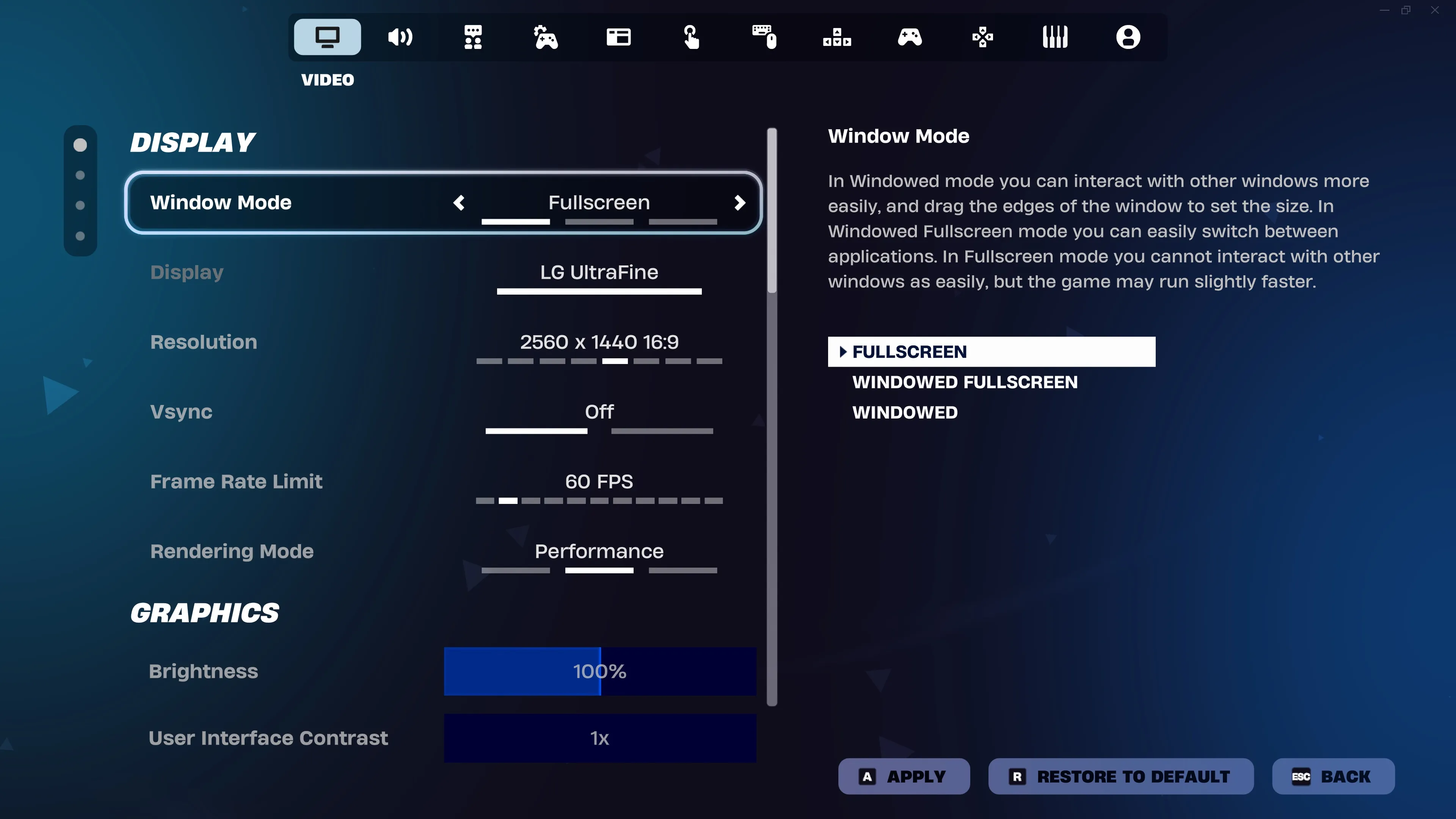
Your display settings affect both performance and responsiveness.
For most players, the following options provide an excellent balance.
Display Mode: Fullscreen
Fullscreen gives Fortnite exclusive access to your display, reducing input lag compared to Windowed or Borderless Windowed mode.
Resolution: Native Resolution
Running your monitor's native resolution produces the sharpest image. If your PC struggles, lowering the resolution can increase FPS, although image quality will decrease.
Frame Rate Limit
Choose a frame rate slightly above your monitor's refresh rate.
Examples:
60Hz Monitor → 120 FPS Cap
144Hz Monitor → 165 FPS Cap
240Hz Monitor → 240 FPS Cap
Avoid unlimited FPS unless your system can maintain it comfortably.
V Sync: Off
V Sync eliminates screen tearing but adds input delay, making the game feel less responsive.
Motion Blur: Off
Motion Blur makes fast movement appear smoother but reduces visual clarity during combat.
Competitive players almost always disable it.
Best Graphics Settings
Graphics settings have the largest effect on performance.
Lower settings don't just increase FPS they also remove visual clutter, making enemies easier to see.
Recommended settings:
View Distance: Medium or Far
Shadows: Off
Anti Aliasing: Low
Textures: Medium
Effects: Low
Post Processing: Low
Many players assume Epic graphics provide an advantage because the game looks better. In reality, competitive players often use much lower settings because they prioritize smooth gameplay over visual effects.
If your PC consistently delivers high FPS, you can gradually increase texture quality while leaving demanding options like Shadows and Effects on Low.
Performance Mode vs DirectX 12
One of Fortnite's biggest performance options is choosing the rendering mode.
Performance Mode
Performance Mode is designed for players who prioritize FPS above everything else.
Benefits include:
Higher average frame rates
Reduced input latency
Faster structure rendering
Better performance on older hardware
The visuals become simpler, but gameplay often feels much smoother.
DirectX 12
DirectX 12 is better suited for modern gaming PCs.
Advantages include:
Better lighting
Improved textures
More detailed environments
Better optimization on newer GPUs
If your computer uses a recent graphics card and consistently delivers high frame rates, DirectX 12 may offer the better experience.
For competitive players, however, Performance Mode remains the most popular choice.
Best Mouse Settings
There isn't one perfect sensitivity that works for everyone.
The best sensitivity is one you can control consistently.
Most experienced players recommend using a relatively low sensitivity because it allows for more precise tracking and accurate aiming.
When adjusting your mouse settings:
Keep your DPI consistent.
Avoid changing sensitivity every day.
Practice with one setup for at least a week.
Focus on building muscle memory.
If your sensitivity feels too high, lower it gradually instead of making dramatic changes.
Small adjustments are easier to adapt to than complete overhauls.
Best Controller Settings
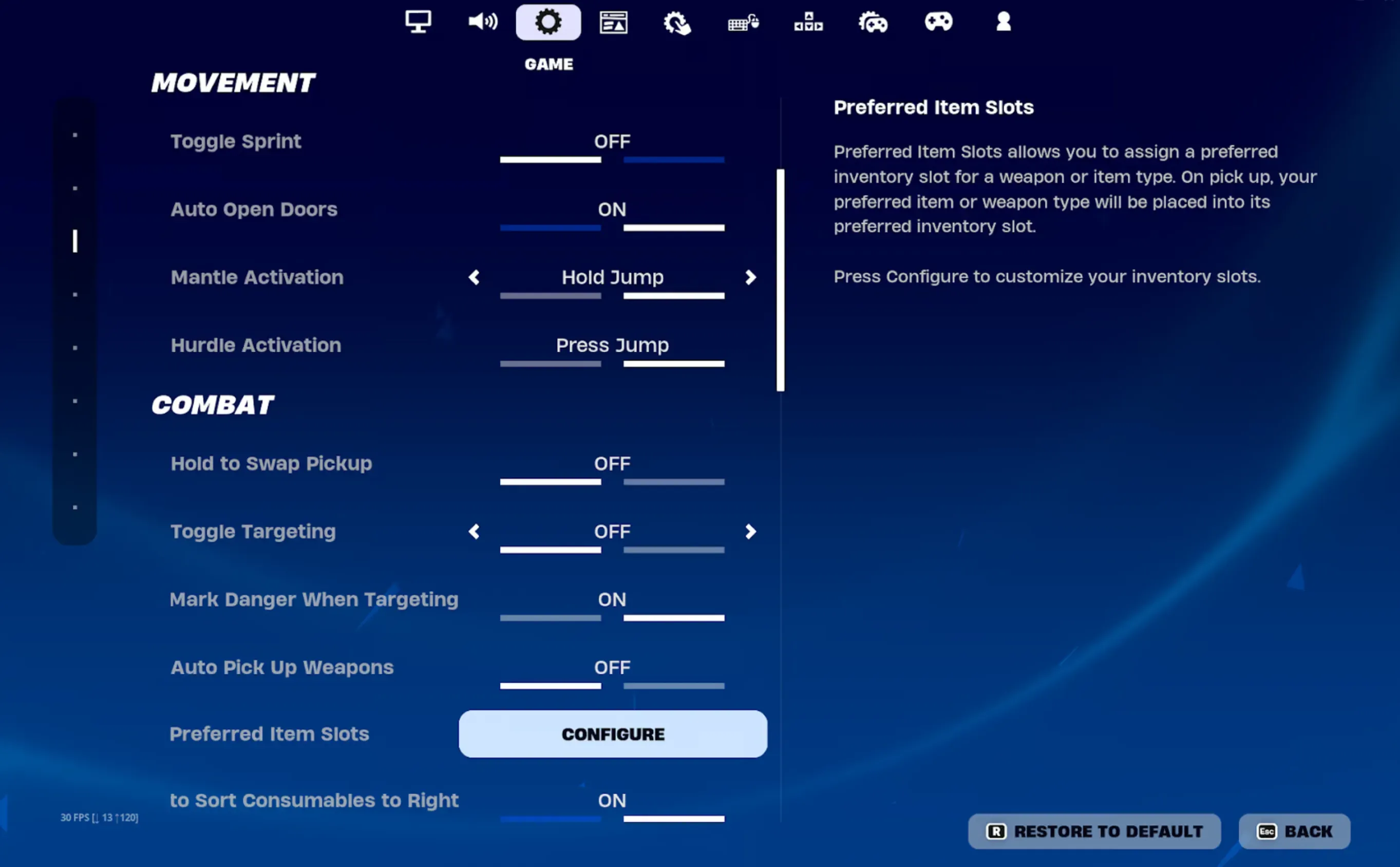
Controller players have access to several settings that greatly influence aiming and movement.
Important settings include:
Look Sensitivity
ADS Sensitivity
Build Multiplier
Edit Multiplier
Dead Zones
Lower dead zones make your controller respond faster but may also introduce stick drift.
Finding the right balance takes experimentation.
If your controller feels unresponsive, slightly reducing your dead zones may improve accuracy.
On the other hand, if your character moves without touching the stick, your dead zones are probably too low.
Best Audio Settings
Good audio awareness wins fights before you even see your opponent.
Hearing footsteps, gliding players, reloads, or healing sounds gives valuable information that helps you react faster.
Recommended settings:
Master Volume: Personal preference
Effects Volume: High
Music Volume: Low
Dialogue Volume: Medium
Cinematics Volume: Personal preference
Visualize Sound Effects: Enabled (optional)
Many competitive players lower or disable music entirely so important gameplay sounds stand out more clearly.
Visualize Sound Effects can also be extremely useful, especially if you're playing without headphones or have difficulty identifying sound direction.
Best Keybind Tips
Efficient keybinds reduce reaction time and make complex actions easier during fights.
Instead of copying professional players exactly, create a layout that feels natural for your own hands.
Good keybinds should:
Keep frequently used actions close to your movement keys.
Avoid requiring awkward finger stretches.
Allow you to switch weapons quickly.
Make building and editing comfortable.
The best keybinds are the ones you can use consistently under pressure not necessarily the ones used by your favorite streamer.
Windows Optimization Tips
Optimizing Fortnite doesn't stop with the in game settings. Your operating system also plays a major role in determining how smoothly the game runs. Even a well configured graphics setup can suffer if unnecessary programs are consuming your computer's resources.
Before launching Fortnite, close applications you don't need, such as web browsers with multiple tabs, video editing software, or background launchers. These programs use CPU power and memory that Fortnite could otherwise use.
If you're playing on Windows, consider these simple optimizations:
Enable Game Mode in Windows Settings.
Select the High Performance power plan.
Disable unnecessary startup applications.
Keep Windows updated.
Install Fortnite on an SSD if possible.
Restart your PC before long gaming sessions.
These adjustments won't magically double your FPS, but together they can provide a more stable and responsive experience, especially during long gaming sessions.
Best NVIDIA Control Panel Settings
If your PC uses an NVIDIA graphics card, you can improve Fortnite's responsiveness by adjusting a few settings in the NVIDIA Control Panel.
Recommended options include:
Power Management Mode: Prefer Maximum Performance
Low Latency Mode: Ultra
Texture Filtering Quality: High Performance
Threaded Optimization: Auto
Vertical Sync: Off
Triple Buffering: Off
These settings prioritize frame rate and lower input latency over visual quality, making them ideal for competitive gameplay.
After applying the changes, restart Fortnite and compare your performance before making further adjustments. Every PC is different, so don't be afraid to experiment if something doesn't feel right.
Best AMD Radeon Settings
AMD users can achieve similar improvements using Radeon Software.
Recommended settings include:
Radeon Anti Lag: Enabled
Radeon Boost: Enabled (Optional)
Wait for Vertical Refresh: Always Off
Texture Filtering Quality: Performance
Surface Format Optimization: Enabled
Radeon Chill: Disabled
These options reduce unnecessary processing while improving responsiveness during gameplay.
If you're unsure about a particular setting, change only one option at a time so it's easier to identify what improves or worsens performance.
How to Increase FPS on Low End PCs
Not everyone has a powerful gaming computer, but Fortnite is well optimized and can still run smoothly on modest hardware with the right configuration.
Start by lowering settings that have the biggest impact on performance, such as shadows, post processing, and effects. These options consume significant GPU resources while providing minimal gameplay advantages.
Performance Mode is also highly recommended for lower end systems because it simplifies visual effects and reduces hardware requirements.
Other useful tips include:
Lower your 3D Resolution slightly if FPS is unstable.
Close background programs before launching Fortnite.
Keep at least 20% of your SSD or hard drive free.
Update graphics drivers regularly.
Disable overlays from Discord, Steam, or GeForce Experience if you don't use them.
Even older systems can provide a smooth experience when unnecessary background processes are eliminated.
Best Settings for Zero Build vs Battle Royale
Although both modes share the same map and weapons, your priorities can change depending on which one you play most.
Zero Build
Without player built structures, positioning and visibility become much more important.
Players often benefit from:
Higher View Distance
Clear audio settings
Stable FPS
Fast input response
Spotting enemies before they spot you is one of the biggest advantages in Zero Build.
Battle Royale
Traditional Battle Royale demands much faster reactions because players can build and edit structures during combat.
In this mode, prioritize:
Maximum FPS
Low input latency
Comfortable build keybinds
Fast edit sensitivity
Consistent frame pacing
During large build fights, maintaining a stable frame rate is far more valuable than having the highest graphical settings.
How to Test Your New Settings
Many players make the mistake of changing every setting at once. While this may seem efficient, it becomes impossible to know which adjustment actually improved your performance.
Instead, test your setup methodically.
Play several matches after making a single change and pay attention to:
Average FPS
Frame stability during fights
Input responsiveness
Enemy visibility
General smoothness
Using Fortnite's built in FPS counter can help you compare performance before and after each adjustment.
If a particular setting doesn't noticeably improve your experience, don't hesitate to revert it.
Common Settings Mistakes
Even experienced players sometimes make configuration mistakes that hurt their performance.
Copying Professional Players
Professional players often use expensive hardware and years of muscle memory. Their settings may not be ideal for your PC or your preferred playstyle.
Use their configurations as inspiration, not as a strict template.
Chasing the Highest FPS
While high FPS is important, consistency matters even more.
A stable frame rate feels smoother than one that constantly jumps between high and low values.
Changing Sensitivity Too Often
Muscle memory takes time to develop.
If you change your sensitivity every few matches, your aim will never become consistent.
Choose comfortable settings and stick with them for several days before making small adjustments.
Ignoring Audio
Many players spend hours optimizing graphics while overlooking one of Fortnite's most valuable sources of information.
Clear footsteps, reload sounds, gliders, and nearby gunfire can warn you about danger long before an enemy appears on your screen.
Running Too Many Background Applications
Streaming software, browsers, RGB software, and unnecessary launchers can all reduce available system resources.
Closing unused programs before launching Fortnite is one of the easiest ways to improve performance.
Final Recommendations
The best Fortnite settings aren't necessarily the lowest or the highest they're the ones that provide a smooth, consistent experience on your specific hardware.
Start with optimized settings, then adjust them gradually based on your own experience.
Focus on:
Stable FPS instead of maximum FPS.
Low input latency.
Comfortable controls.
Clear audio.
Reliable visibility.
Once your settings feel consistent, avoid changing them frequently. Familiarity and muscle memory are just as important as raw performance.
Conclusion
Optimizing your Fortnite settings is one of the easiest ways to improve your overall gameplay. While better hardware can certainly help, properly configuring your display, graphics, controls, and audio often provides noticeable improvements without any additional cost.
Remember that settings alone won't make you a better player. They simply create the best environment for you to develop your skills. Combine an optimized setup with regular practice, smart positioning, and good decision making, and you'll see steady improvement over time.
Whether you enjoy casual Zero Build matches or competitive Battle Royale, taking the time to fine tune your settings ensures you're getting the best possible experience every time you drop onto the island.